Assignment 01: Hello CS355!
Due Tuesday, January 27, before midnight
The goals for this assignment are:
-
Sign into slack
-
Sign into a lab computer
-
Setup an SSH key for github
-
Clone your classwork repository
-
Write a C++ program
1. Sign-up for slack
I will be inviting you all to join the course slack channel. In the
#social channel, say and introduce yourself:
-
What is your preferred name and pronouns?
-
Share with us your favorite emojji. :)
We will use Slack for
-
Course announcements
-
Questions and errata for assignments and labs
-
One-on-one programming help
You can also use Slack to talk directly to me and the TAs, or even to each other.
2. Sign into a lab computer
As a CS students, you should have received a username and password from our IT administrator, David Diaz. Use this account information to log into one of the desktops in our lab while they are running Linux.
| To log into Ubuntu, you should use your CS username and password. |
Our lab machines are dual boot. This means that they can boot either Windows or Ubuntu Linux. For class, you will need to boot them with Ubuntu.
3. Sign-up for Github
If you do not have one already, please create a github account.
Email the instructor (anormoyle at brynmawr.edu) with your github username.
4. Setup an SSH Key for github
SSH refers to "Secure Shell Protocol" and it ensures that the information transferred between your local machines and github are secure.
If you have not done this before, follow the instructions here.
5. Hello C++
Verify that you can use Github, git, and C/C++. You can try this using a lab machine, or your own machine if you have setup your development environment there.
5.1. Clone the repository
After clicking the link, you should receive an email from Github that invites you to the repository. Please check your email and accept the invitation. Afterward acepting the invitation, you should be able to see your repository and clone it.
| Do you see the error: "Repository Access Issue: You no longer have access to your assignment repository. Contact your teacher for support."? If yes, check your email and accept the invitation for your account. |
5.2. Get the download link
From your github account, copy the repository url from Github. It should look similar to the following (note that URLs and repository names may be different!)
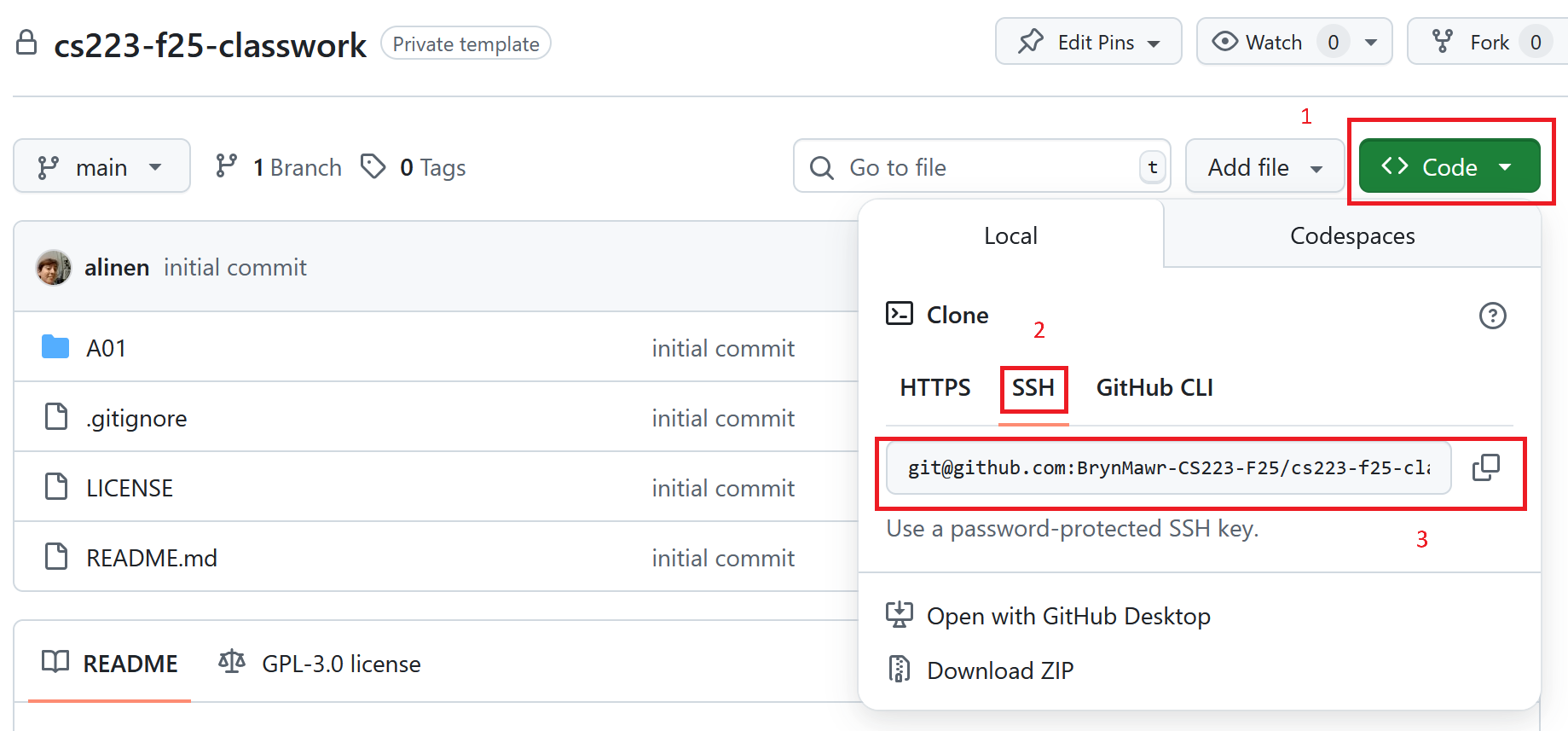
| Make sure you have SSH selected for the URL type |
git clone git@github.com:BrynMawr-CS355-S26/warmup-USERNAMEThis will download a local copy of the repository to your computer.
Hello
In the directory warmup-USERNAME, create a file named hello.cpp. Implement a
program that prints "Hello World" to the console.
$ make hello
$ ./hello
Hello World
Check in your file.
$ git add hello.cpp
$ git commit -m "proof of concept"
$ git push
Base16
In the directory, warmup-USERNAME edit the file base16.cpp.
Implement a program that inputs a binary file and outputs its contents to a text file as a hexadecimal string.
$ make
g++ -g -Wno-unused-variable -Wno-unused-but-set-variable base16.cpp -o base16
$ ./base16
usage: ./base16 < filename >
$ ./base16 float.bin
00002040
$ cat float.txt
00002040
$ hexedit float.bin
00000000   00 00 20 40  .. @
Requirements:
-
Compiles with
make. (Do not modify the Makefile) -
Accepts a file as a command line argument. If not file is given, output a usage message.
-
Reads in a binary file and outputs a text file. The above implementation also prints the contents to the console, in addition to writing the output to a file.
-
The input file should have the extension
.bin. The output file should have the same base name but with extension.txt -
No memory errors using
valgrind -
Adheres to the style guidelines and includes a header comment
| To check for valgrind errors, run your program like so. Look for the message "no leaks are possible". Make sure there are no errors reported. We will talk more about valgrind in week 2 and 3. |
$ valgrind ./base16
==5184== Memcheck, a memory error detector
==5184== Copyright (C) 2002-2017, and GNU GPL'd, by Julian Seward et al.
==5184== Using Valgrind-3.15.0 and LibVEX; rerun with -h for copyright info
==5184== Command: ./base16
==5184==
==5184==
==5184== HEAP SUMMARY:
==5184==     in use at exit: 0 bytes in 0 blocks
==5184==   total heap usage: 2 allocs, 2 frees, 2,048 bytes allocated
==5184==
==5184== All heap blocks were freed -- no leaks are possible
==5184==
==5184== For lists of detected and suppressed errors, rerun with: -s
==5184== ERROR SUMMARY: 0 errors from 0 contexts (suppressed: 0 from 0)
Submit your work to Github
Add and check in your program using git and then push your changes to Github.
Run the following command inside your warmup-USERNAME directory.
$ cd warmup-USERNAME
$ git add *.c
$ git commit -m "Descriptive message"
$ git push
Run git status to check the result of the previous git command.
Check the Github website to make sure that your program uploaded correctly.
6. (Optional) Set up a remote development environment with our server goldengate
A remote development environment will allow you to run code from goldengate, a remote server, from within an integrated development environment.
For this option, your need to use VS Code with the Remote-SSH extension to VS Code.
7. (Optional) Set up your own local development environment
A local development environment allows you to write code on your own desktop or laptop. With a local development environment, you will be able to run your code even after you graduate from college.
| All programs must run on the lab’s Linux environment. Make sure you test your work on the lab machines if you work on your laptop! |
7.1. Windows
-
Open PowerShell and install wsl2:
wsl --install. See documentation. Note that you may need to open powershell as an administrator. -
From the windows store, install
Ubuntu.
Once installed, you can setup your development environment from a bash shell.
-
Open PowerShell
-
Type
wslto start the windows subsystem for linux. This will give your a bash prompt -
Then install your development tools
-
sudo apt-get install cmake -
sudo apt-get install git -
sudo apt-get install g++ -
sudo apt-get install vim -
sudo apt-get install libc6-dev-i386 -
sudo apt-get install gcc-multilib -
sudo apt-get install hexedit -
sudo apt-get install valgrind -
sudo apt-get install gdb
-
For example, you get something like the following
Windows PowerShell
Copyright (C) Microsoft Corporation. All rights reserved.

PS C:\Users\alinen> wsl
WSL alinen@Balthazar:~$ sudo apt-get install make

etc| A quick way to open powershell is to type <WindowsKey>-'Q' and type 'powershell'. |
7.2. MacOS
From terminal, run command xcode-select --install
You can follow the instructions here
Then, to install additional dependencies, execute the following commands form terminal
$ brew install vim
$ brew install git
$ brew install cmake| A quick way to open terminal is to use spotlight. From the keyboard, type the <cmd> and <spacebar>. Then type terminal at the popup edit field. |
Unfortunately, valgrind and gdb cannot be run natively on mac. However, you may try running leaks or lldb which are similar. However, we recommend you still test on goldengate or a lab machine.
8. Grading Rubric
Assignment rubrics
Grades are out of 4 points.
-
Github setup and hello.cpp (1 point)
-
Slack setup and introduction (0.5 points)
-
C program (2.5 points)
Code rubrics
For full credit, your C programs must be feature-complete, robust (e.g. run without memory errors or crashing) and have good style.
-
Some credit lost for missing features or bugs, depending on severity of error
-
-12.5% for style errors. See the class coding style here.
-
-50% for memory errors
-
-100% for failure to checkin work to Github
-
-100% for failure to compile on linux using make